

Quick answer: A useful weekly Microsoft Planner status report needs nine fields: plan name, reporting period, overall status, owner, this week, next week, risks and blockers, decisions needed, and key numbers. Planner already gives you the structural data behind several of those: dates, percent complete, assignments. The narrative, risk call and decision framing are still yours to write. This post is the literal template for Microsoft Planner status reporting, what's native versus manual, and the two real options (Power BI, or a hosted portfolio view) for not rebuilding it from scratch every week.
This is the tactical version, written for the person producing the update: a PM or plan owner who needs a format they can fill in every Friday and trust to look the same next week. If you're the one receiving these reports and need to roll several plans into one executive view with decisions flagged for leadership, see the executive-facing version of this, which covers cross-plan rollups and sponsor-level decision framing instead. This post stays at the single-plan, weekly-cadence level.
How often to report, and to whom
The cadence question matters more than the format question. Teams get it wrong by reporting so often it becomes noise, or so rarely it stops reflecting reality. A useful framework, covered in more depth in when and how to deliver status reports, is to match cadence to how fast the plan changes and how far the audience sits from the daily work.
1. Weekly, to the people doing the work and their direct stakeholders. If the plan changes day to day, with tasks completed, blocked, or reassigned, weekly is the shortest interval still worth writing up formally. More often turns into status theater; less often and the report is stale before anyone reads it.
2. Monthly, as a rollup, to sponsors and leadership. Executives rarely need every week's detail; they need the trend and the exceptions. A monthly rollup built from the "this week / next week" lines of the last four reports, risks and decisions pulled to the top, is usually enough, and it's exactly where a single-plan format stops scaling. Assembling that rollup across several plans is the companion post's job.
3. Ad hoc, whenever status changes materially. A new blocking risk, a missed date that hits a downstream team, or a decision that can't wait until Friday shouldn't wait for the next scheduled report. Send it separately, short, flagged as out-of-cycle so it doesn't get lost in the regular rhythm.
For most single-plan owners the answer is simple: write the weekly report every Friday, and let anyone who needs a monthly view assemble it from the last four instead of inventing a second format.
The weekly status report template
Every field below earns its place. Cut one and you lose either the ability to act on the report or the ability to trust it later.
- Plan name: which Planner plan this covers, so the report is unambiguous once it's out of context (forwarded, pasted into an email, or read a month later).
- Reporting period: the date range this update covers, e.g. "Sep 22–26."
- Overall status: a single Green/Yellow/Red (or On track/At risk/Off track) call, made deliberately rather than defaulted to green because nothing dramatic happened.
- Owner: who's accountable for the plan and for this report, by name.
- This week: what actually got done, such as completed tasks, milestones hit, meaningful progress on open work. Specific, not "good progress made."
- Next week: what's planned, so a reader can tell next Friday whether it changed and why.
- Risks and blockers: anything that could push the timeline or needs help to resolve, stated plainly rather than left buried in task comments.
- Decisions needed: anything that requires someone outside the team to choose, with a date by which the decision is needed.
- Key numbers: task counts (completed / in progress / overdue) as a snapshot, not a verdict.
Keep it to one page. If a section has nothing to report, write "none" rather than leaving it blank. A risks section reviewed and found empty looks identical to one nobody checked, and only the first is actually useful to a reader deciding whether to trust the rest of the report.
Filling it in from Planner: what's native, what you still write
Microsoft Planner reporting supplies real structure for this, and it's worth being precise about how much. Plan 1, the base tier, already includes Timeline (Gantt-style scheduling), a People view for workload by assignee, sprints, task dependencies and custom fields, none of them Premium-only functionality. Planner Premium (Plan 3 or Plan 5) adds native Portfolios that roll several Premium plans into a shared, read-only view.
What Planner gives you natively
Due dates, percent or checklist completion, assignments, bucket groupings, the Timeline view, and custom fields all live in the plan already, populating several template fields: reporting period, parts of "this week," and the raw material behind your key numbers, all without extra data entry.
What you still have to write by hand
The parts that turn a task list into a status report are the parts Planner doesn't generate: the narrative of what happened and why it matters, the judgment call on which blockers are serious enough to escalate, and the decision framing: what exactly you need from the reader and by when. That's the actual work of reporting, not overhead around it.
Planner Agent: a real shortcut for a single plan
Microsoft's Planner Agent can generate an automatic status summary directly from a shared Basic or Premium plan's content, a legitimate option if you own one plan and want a fast first draft rather than a blank page. The gap shows up past one plan: the Agent summarizes each plan independently, so five plans produce five summaries that share no format and don't roll up. For one plan, use it. For anything wider, you're back to the template above, or to something that maintains one format for you.
Two things Planner data will not give you, however you assemble the report. A completed task is not a dollar of budget spent: Planner has no cost or budget model, so any cost figure has to come from a finance system, not task completion. And a person's task count is not their utilization either. Someone with three large tasks can be more loaded than someone with twelve small ones, so don't let task counts stand in for a real capacity read.
The Power BI report-pack path
If you want this consolidated without adopting another tool, Microsoft Planner Power BI reporting is the DIY route most teams try first: Power BI can query Planner data through the Microsoft Graph API and lay it out as a recurring report pack. We've published a setup walkthrough, configuring a Planner report pack in Power BI, worth reading even if you build your own, because it lays out exactly what the path requires: a Power BI Desktop file, a workspace to publish it to, an app registration with a Graph API token, and a scheduled refresh so the numbers don't go stale.
None of that is hard individually, but it's real setup someone has to own: the token, the refresh schedule, the workspace permissions. And it only ever solves the structural half of the report. The narrative, the risk call and the decisions-needed line still get typed in separately, because Power BI has no concept of "here's what we need from you by Friday."
Where a maintained, cross-plan view fits
If you're doing this for one plan, the template above plus a few minutes in Planner each Friday is genuinely enough. The math changes past a few plans: the weekly work of opening each one, checking dates and counts, and re-typing them into a consistent format is the same manual step multiplied by however many plans you own, and it's usually the first thing that slips when a week gets busy.
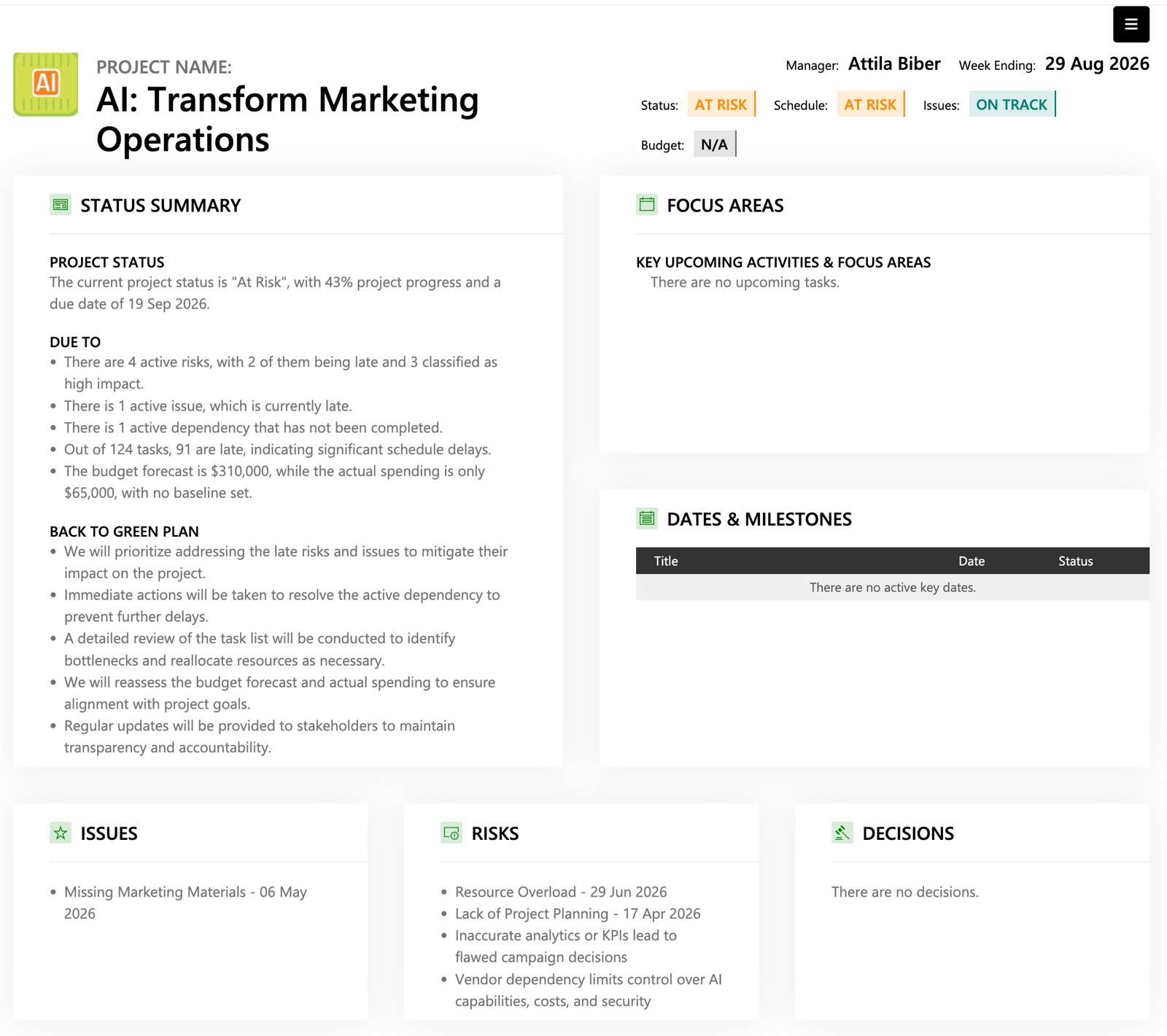
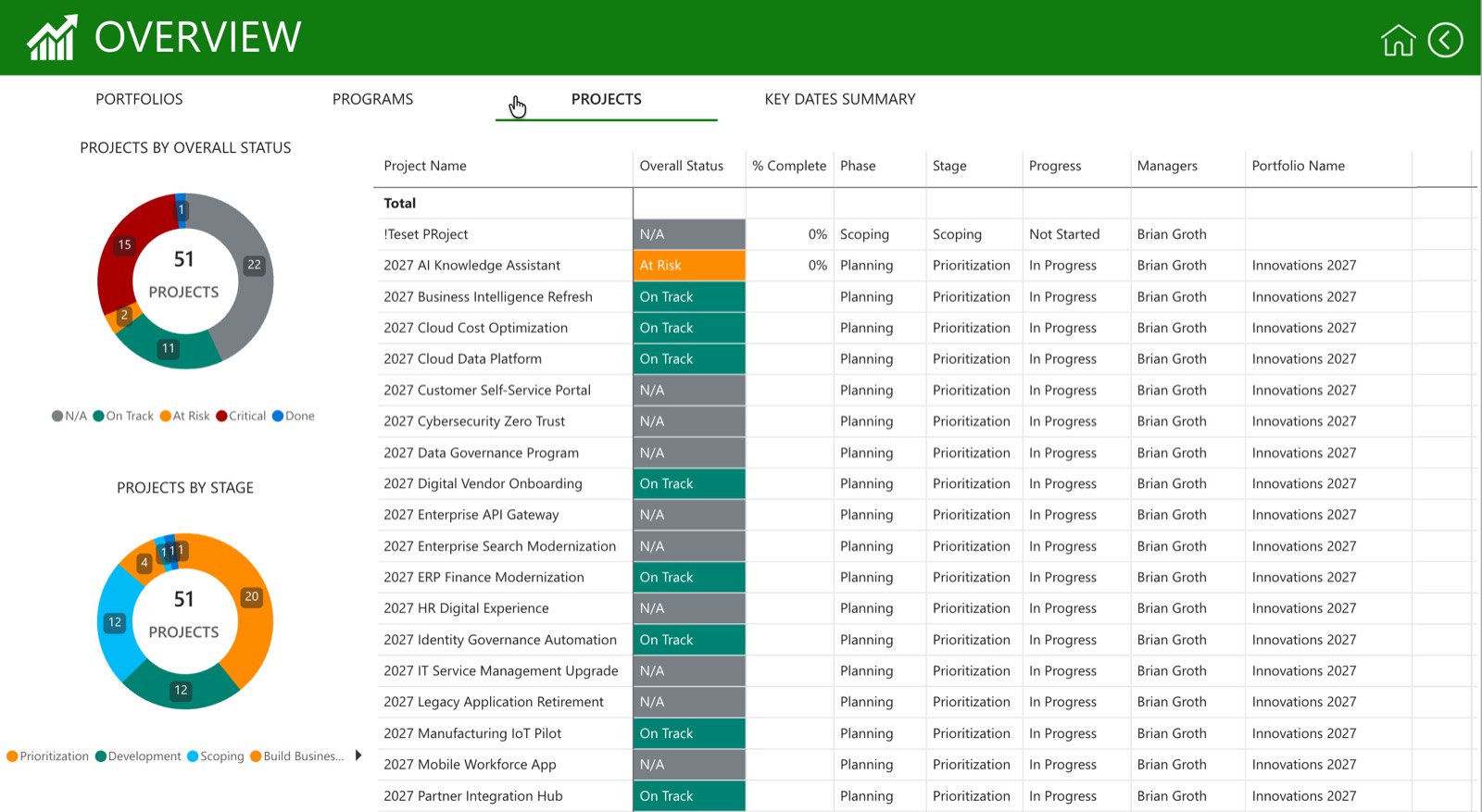
PPM Express for Microsoft Planner connects your active plans in one tenant and keeps a cross-plan portfolio view current automatically, with one standard report format you can share or export instead of rebuilding it plan by plan. It won't write your narrative for you; it removes the manual pull-the-numbers-together step that eats most of the time in a recurring status report.
Frequently asked questions
Does Microsoft Planner have a built-in status report feature? Not a dedicated report screen, but Planner Agent, Microsoft's AI assistant, can generate an automatic status summary for a shared Basic or Premium plan. That's useful for a single plan; it doesn't produce one consistent format across multiple plans, and it won't write your risk assessment or flag a decision for you.
Can I build a Microsoft Planner status report in Power BI instead? Yes. Power BI can query Planner data through the Microsoft Graph API and produce a report-pack layout, and we've published a setup walkthrough for one version of it. It needs a Desktop file, a workspace, an app registration and token, and a scheduled refresh: a real project to set up and maintain, but a legitimate DIY path if you're comfortable owning that.
How often should I send a Planner status report? Weekly for the delivery team and close stakeholders. Sponsors and leadership are usually better served by a monthly rollup built from the last several weekly reports, with anything urgent sent separately as soon as it's known.
What should I do if a section has nothing to report? Write "none" rather than leaving it blank. An empty risks section that was reviewed and found clear looks identical to one nobody ever filled in. Writing "none" turns the review into a visible decision instead of a silent omission.
Does a Planner task's percent complete mean the project is on schedule? Not by itself. Percent complete reflects checklist or task progress, not effort, cost or downstream dependency risk. A task can sit at 90% complete for two weeks. Treat it as one input into the overall status call, not the call itself.
Can I pull a Planner status update through ChatGPT? Yes, if it's connected through a custom MCP app: that's how ChatGPT reaches Planner data today. There's no native, out-of-the-box ChatGPT report for Planner, so this sits closer to the DIY path than something you switch on directly.
If rebuilding this report by hand every week, across more than one plan, is starting to get old, PPM Express for Microsoft Planner keeps a cross-plan view current automatically and gives you one standard report to export or share instead of reassembling it plan by plan, saving you the Friday-afternoon scramble.
.svg)


