

Project Online Shuts Down in 2026. Here's Your Full Migration Guide.
Updated February 2026
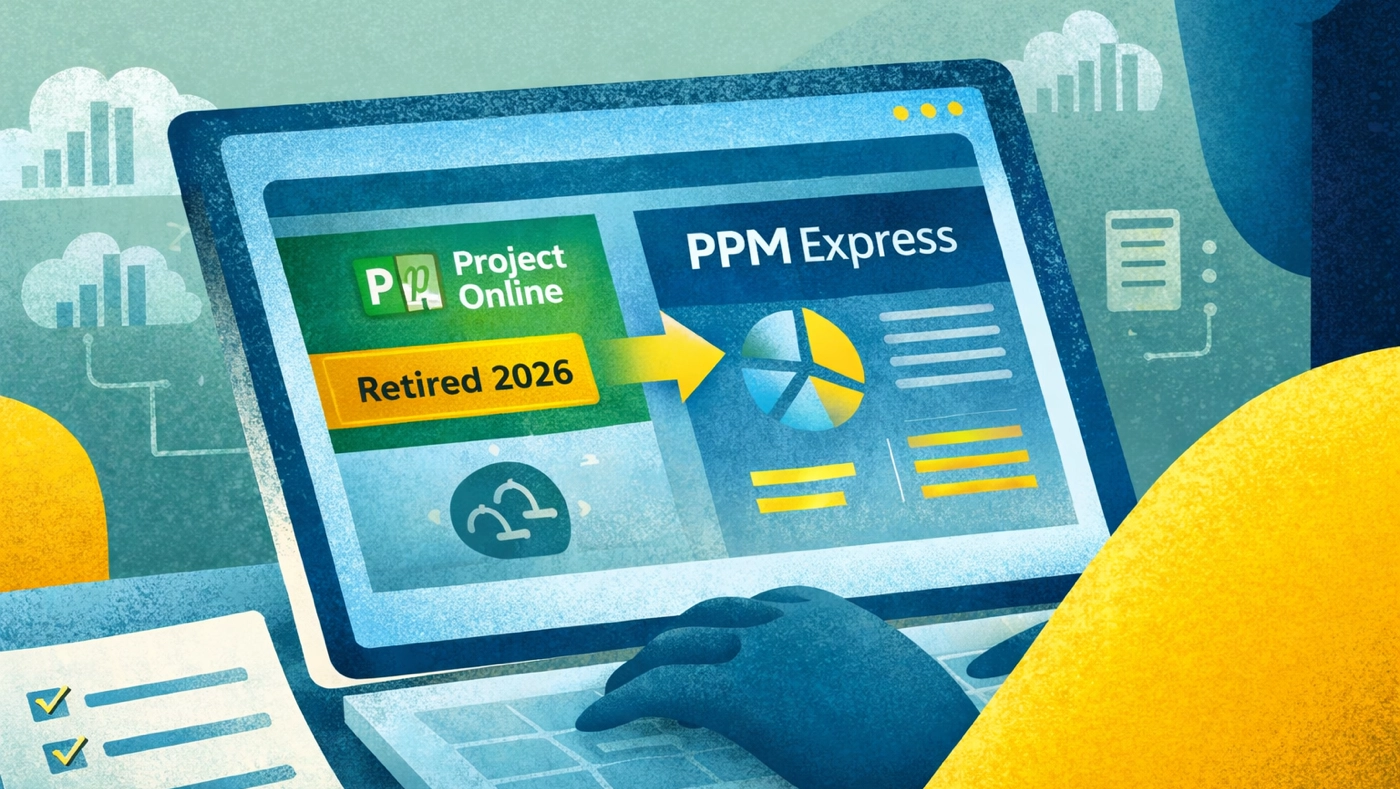
Microsoft has locked in 30 September 2026 as the day Project Online disappears. No grace period, no read-only mode: on that day your tenants, schedules, and historical data are simply gone. For PMOs that still rely on Project Online, that deadline is bigger than a routine upgrade: it forces a decision about what platform will carry every project, program, and portfolio going forward.
The upside is that you control what happens next. Moving off an aging SharePoint-era architecture is the perfect moment to modernize governance, consolidate reporting, and finally match your tool stack with the way teams actually work. PPM Express has been guiding enterprise migrations for years, so we pulled together the playbook we use with customers: the rationale behind the retirement, what Microsoft's timeline really means, the viable landing zones, and a detailed action plan that keeps the work orderly.
What Microsoft Announced (and Why It Matters)
• 1 October 2025 – Microsoft stopped selling Project Online SKUs to new customers.
• April 2026 – Existing tenants lose the ability to create new Project Online instances.
• 30 September 2026 – Microsoft shuts down Project Online. After this date, no tenant, schedule, or report is accessible.
Project Online still runs on a SharePoint foundation that predates Microsoft's current data strategy. It cannot plug cleanly into Microsoft Graph, it struggles to power Copilot scenarios, and it locks collaboration inside outdated site collections. Rather than pour more engineering effort into that stack, Microsoft is doubling down on Planner, Project for the web, Power Platform/Dataverse, the Project Manager Agent, and Teams as the collaboration surface.
That shift spells two kinds of risk for organizations that delay: (1) hard risk: lose access to schedules, custom fields, and historical reporting on 30 September 2026; and (2) opportunity risk: miss out on AI-assisted planning, automated governance, and integrated Teams experiences that peers are already adopting.
Assessing Your Starting Point
Before you pick a destination, inventory how Project Online is actually being used today. A quick discovery worksheet should cover:
• Who lives in Project Desktop every day and why.
• Which departments consume Project Online reports (finance, portfolio steering committees, PMO leadership, engineering, product, etc.).
• Integrations that depend on Project Online data (ERP, HRIS, ticketing, data warehouse, Power BI).
• Custom fields, PDPs, workflows, and security settings that cannot be lost.
• Pain points the business has been ignoring (duplicate status reporting, manual timesheets, lack of resource visibility, "black box" project data).
This inventory does two things: it tells you which migration option fits best and highlights the moments to improve (not just replicate) your current setup.
The Three Landing Zones (and When to Choose Each)
Option 1 – Stay with Microsoft Project Desktop by Moving to Project Server SE
If your planning culture revolves around Microsoft Project Desktop and you rely on deep scheduling controls, move the backend to Project Server Subscription Edition (SE). You can host it on premises, in a co-location data center, or on Azure VMs. The workflows, VBA macros, templates, and cost engines your planners trust stay intact, but you anchor them to a supported platform.
PPM Express connects directly to Project Server SE via the Microsoft Graph–compatible data model, so you can modernize governance, dashboards, and approvals without forcing planners to abandon .mpp files.
Option 2 – Modernize on PPM Express
Many organizations were using Project Online primarily as a portfolio and reporting shim. PPM Express delivers what they actually need: unified portfolio visibility and governance while letting every delivery team keep its execution tool: Planner, Project for the web, Azure DevOps, Jira, Smartsheet, Monday.com, or legacy Project schedules.
Within one SaaS workspace you get:
• Portfolio views with live health, schedule, and budget signals.
• Resource capacity and forecasting across FTE, hours, or percentage allocations.
• Timesheets with AI-suggested entries, non-project time, and CAPEX/OPEX tagging.
• Stage-gate and policy-driven governance (approvals, compliance, audit logs).
• Microsoft Teams and Viva surfacing so executives see the same data inside their daily tools.
• Power Platform connectors plus a Dataverse-ready data model for custom workflows and BI.
Option 3 – Hybrid: Project Server SE + PPM Express
Some enterprises need the precision of Project Desktop for certain programs while everyone else wants a lighter, Teams-first experience. In that case you keep Project Server SE for heavy scheduling, then layer PPM Express for portfolio reviews, risks/issues, timesheets, demand intake, and executive scorecards. It is also a proven bridge strategy: once stakeholders see the modern interface, more work gradually transitions into PPM Express.
Migration Framework: Five Phases
Phase 1 – Data Protection. Freeze a backup plan right now. Export your Project Online schedules, resource plans, custom fields, timesheets, and PDP definitions while the service is fully operational.
Phase 2 – Design. Map personas (portfolio leaders, PMs, finance, resource managers), capture must-have functionality, and identify the improvements you want (automated status reports, integrated timesheets, AI insights). Decide which migration option supports that design.
Phase 3 – Build the Landing Zone. Stand up Project Server SE and/or PPM Express. Configure portfolios, templates, governance policies, security groups, and integrations. For PPM Express, this typically takes weeks because it is SaaS.
Phase 4 – Pilot and Train. Start with a portfolio that has manageable complexity. Run live data through the new environment, validate integrations, collect feedback, and roll out enablement via Teams, live workshops, and short Loom-style videos.
Phase 5 – Scale in Waves. Move additional portfolios in prioritized waves. Decommission Project Online components as soon as their workloads fully transition so you are not maintaining duplicate processes.
How PPM Express Accelerates the Move
• Graph-ready architecture keeps your data aligned with Microsoft 365 from day one.
• Native integrations cover Planner, Project for the web, Azure DevOps, Jira, Smartsheet, Monday.com, and traditional Project schedules.
• Automated status insights and Copilot-assisted drafts eliminate manual PowerPoint updates.
• SaaS delivery means security, compliance, and upgrades are handled for you.
• Portfolio dashboards, resource planning, and governance workflows are prebuilt but fully configurable, so PMOs see value in weeks instead of quarters.
Frequently Asked Questions
Q: What exactly disappears on 30 September 2026?
A: Only Project Online tenants. Microsoft Project Desktop, Project Server SE, and Microsoft Planner remain online.
Q: Can we access data after shutdown?
A: No. Once Microsoft flips the switch, Project Online data is gone. Export everything now.
Q: Are 2016/2019 Project Server versions safe?
A: Both hit Extended Support end on 14 July 2026. Plan to upgrade to Subscription Edition as part of the same program.
Q: Do we have to abandon Project Desktop?
A: Not if you still need it. You can keep Project Desktop tied to Project Server SE or sync schedules directly into PPM Express.
Q: How long do typical migrations take?
A: Most organizations complete pilots in 4–6 weeks and full rollouts in 3–6 months depending on portfolio size and integration complexity.
Let's Talk
If you want help building the migration roadmap, email hello@ppm.express or drop a note at https://ppm.express/contact.
We will review your current stack, outline the best landing zone, and map milestones that keep you ahead of the September 2026 cutoff.
.svg)


